Prepare your school for online learning
The ASIS operations team first provisions your school’s Moodle site. School administrators then prepare people, course offerings and publication in the regular ASIS app.
Prepare accounts
- Select your school and open the student or teacher record.
- Set User Account Code to the correct ASIS account.
- Enable Enable LMS Access and save.
- Confirm the user has a first name, last name and verified email.
- Check the saved student course roster and teacher course assignment for the correct academic period.
For bulk changes, use School Gateway → Learning Platform → Individual learning access, select Students or Teachers, choose the people and use Enable selected.
Add and publish an offering
- Open School Gateway → Learning Platform.
- Select a Course and Academic period under Select a learning offering.
- Optionally choose Copy content from. Content is copied; learners and their work are not.
- Choose the paid-access policy. Leave both paid switches off for ordinary free roster access.
- Select Add offering, then publish using the offering controls.
- Wait for synchronisation to complete and test access with an assigned teacher and student.
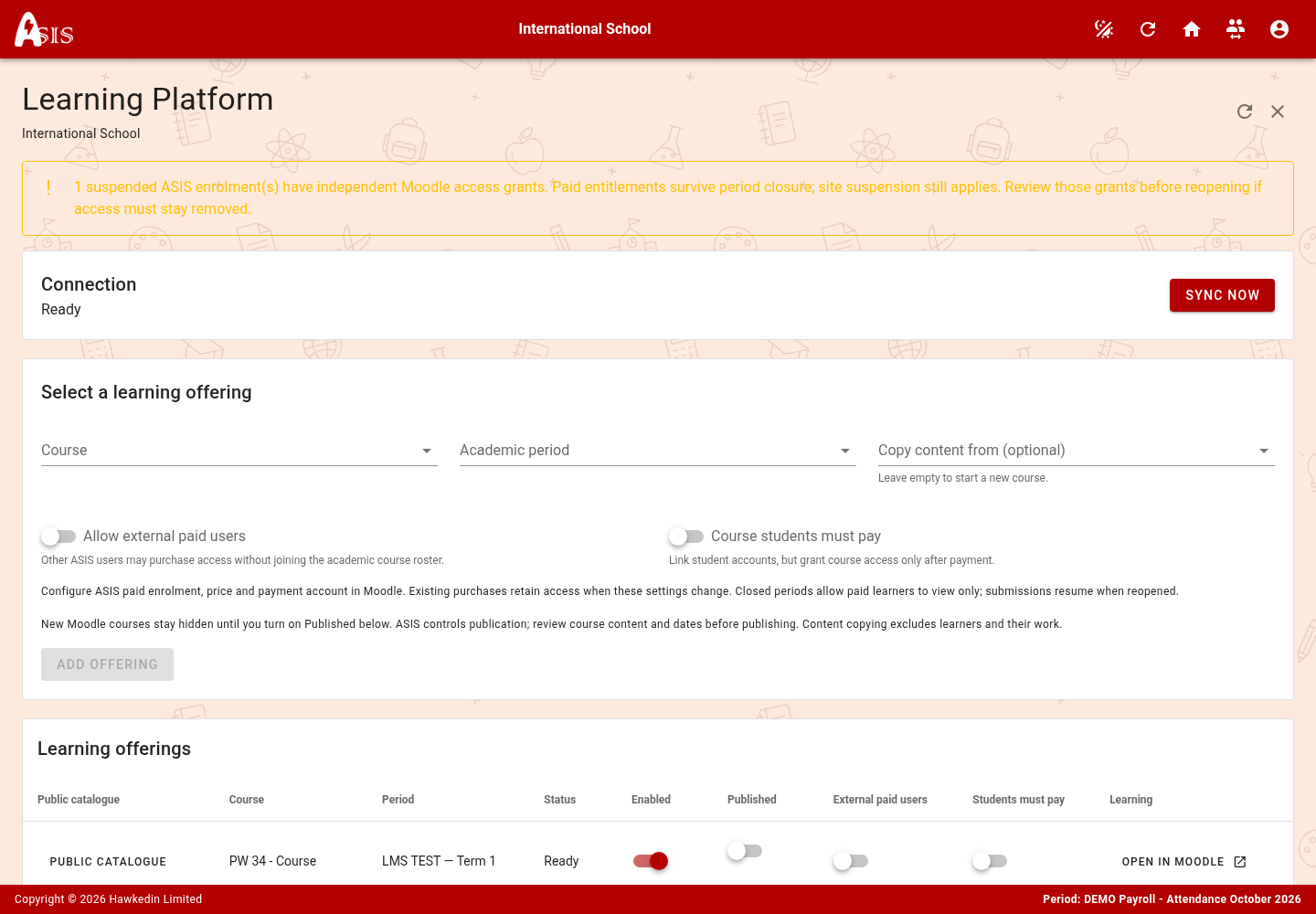
Allow external paid users makes paid access available beyond the course roster. Course students must pay requires roster students to purchase access too. Review the policy and Moodle price before sharing a public course.
Course images and descriptions shown in Learn come from the offering’s Moodle course information. Edit the course summary and image in Moodle with the appropriate permission, then allow catalogue synchronisation. A course without an image displays the ASIS course illustration.
Close or suspend access
Period closure suspends ASIS-owned roster enrolments. Independent Moodle grants and paid entitlements can survive period closure. Review those grants before reopening if access must stay removed. Site suspension blocks the site as a whole.