Create and share a meeting
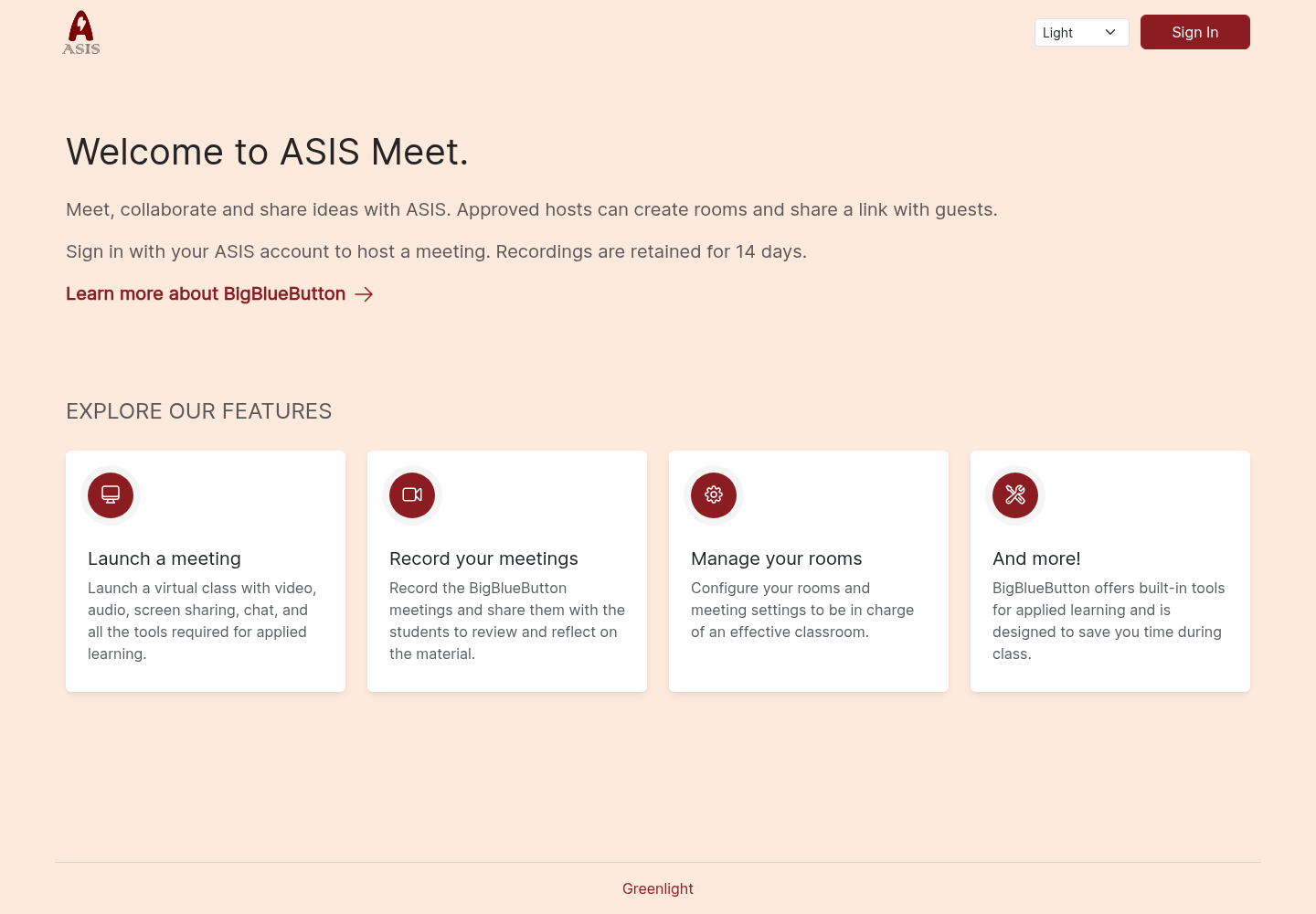
ASIS Meet lets approved hosts create rooms and invite people without placing the meeting inside a Moodle course.
- Open ASIS Meet, or select Meet from the ASIS profile menu.
- Select Sign In and use your ASIS account.
- Choose an existing room or select New Room.
- Open the room and use Copy Join Link to copy its invitation.
- Share the link with participants and use Start Meeting when ready.
Who can host?
ASIS operations grants Meeting Hosts or Meeting Administrators membership. Other ASIS users cannot sign in to the room dashboard, but may join an invited meeting as guests when its settings allow it. School administrator access does not automatically grant meeting-host access.
Room access versus an invitation
A join link is for meeting participants. The room’s Access → Share Access feature shares room access with existing Greenlight users; it is not a directory of every Keycloak account. A host normally appears after their first permitted Greenlight sign-in.
Guests cannot start a room. Review guest approval and moderator settings before sharing a link widely. Record only when appropriate; recordings are retained for 14 days.